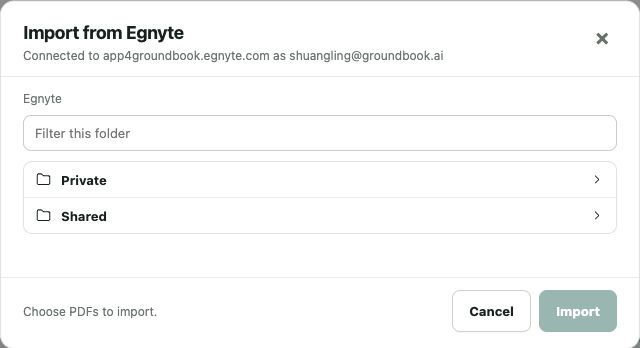
Open More in the Groundbook draft’s import controls and choose Egnyte. Enter your company’s Egnyte domain, connect the account, browse folders and import the selected PDFs or DWGs.
Connect the correct domain
- Open a Groundbook project draft and choose More in the import controls.
- Choose Egnyte.
- Enter your company’s Egnyte domain in the domain field. Use the domain your firm actually works in.
- Choose the connection action and complete Egnyte’s account authorization.
If your organization restricts application access, confirm the setup with its administrator. A different domain can lead to a valid sign-in that still does not contain the intended project files.
Browse and select the package
Start from the available root folders, then open the project and discipline folders. Select PDFs or DWGs needed for the review. The picker can retain selections while you browse to another folder, which helps assemble a package spread across disciplines.
Check filenames, issue dates and the project register before importing. Include the specifications or reports needed to answer your review question rather than selecting every file in the archive.
Verify the imported scope
Compare the Groundbook file list with the source register. Check missing disciplines, supporting references and the intended design issue. A package collected from separate folders can accidentally mix working and issued documents.
For pre-GMP review, retain the exact pricing basis and accepted clarifications. For calculation-to-drawing review, import the current calculations as references with the relevant drawings.
Handle revisions and permissions
Groundbook imports copies of your selected files. When the source package changes, import the revised files for the next review and record the new baseline. The connection does not continuously index or synchronize the whole Egnyte library.
If a folder is unavailable, check the account and folder permissions in Egnyte. Reconnect an expired session using the picker’s connection action. Keep the source files in their managed location; this import workflow does not edit them.
Egnyte setup worksheet
| Check | Sources | Review question |
|---|---|---|
| Domain | Company Egnyte address and intended account | Is the connection pointed at the correct company domain? |
| Folder access | Egnyte folder permissions and visible locations | Can the account access the actual project folder? |
| Cross-folder selection | Discipline folders and source register | Are all selected files part of the same intended review issue? |
| Imported issue | Groundbook file list and later source changes | Was the selected package verified and the next revision imported explicitly? |
Primary reference and support
Egnyte’s folder permissions guide explains the vendor’s folder-access administration. Source checked October 13, 2026.
The Groundbook steps and screenshot were checked against the app October 13, 2026. If the connection remains unavailable, contact us with the domain and the step that failed, without sending passwords or tokens. You can also upload PDF or DWG files directly.