Choose SharePoint / OneDrive in a Groundbook draft, sign in with the Microsoft account that can access the project documents, then browse OneDrive or SharePoint libraries and import selected PDFs or DWGs.
Sign in from the import picker
- Open your Groundbook project draft.
- Choose SharePoint / OneDrive below the upload controls.
- Use Sign in with Microsoft and select the account with project access.
- Complete the normal connection process and return to the picker.
A company may require an administrator to approve the application or its access. Keep the account and intended tenant clear when asking for help.
Choose the location before the files
The picker offers OneDrive and available SharePoint locations. Open the relevant document library and folder, then select the required PDF or DWG files. Use the filter to narrow the visible list, while checking the actual filenames and issue information.
A similarly named working file may differ from an issued project document. Confirm the source folder and review register instead of assuming the first search result is the correct issue.
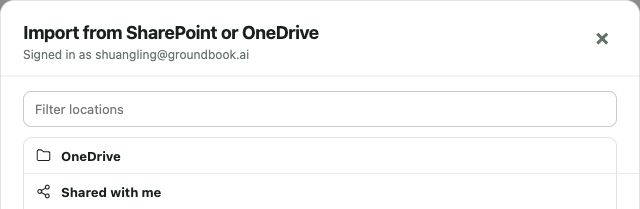
Import a complete review scope
Select the design documents and the references they must agree with. A submittal review needs the proposed package and its governing drawings or specifications. A design-basis review needs the actual criteria, not just the drawing file.
After import, verify the file list and source issue. Record missing references before the review starts so the team can distinguish absent evidence from a document inconsistency.
Keep copies and revisions explicit
These imports copy selected files into Groundbook for a project review. A later edit in SharePoint or OneDrive does not automatically revise the imported review package. Import the new issue and identify its baseline for the next comparison.
The revision review guide explains how to trace changed requirements. Keep earlier files identifiable when they support the history of a review question.
Microsoft setup worksheet
| Check | Sources | Review question |
|---|---|---|
| Microsoft account | Intended tenant, site and document access | Is the signed-in account the one that can access this package? |
| Library and folder | SharePoint site or OneDrive location | Are the files from the actual project issue rather than a working folder? |
| Selected documents | Drawing register and imported file list | Did the required drawings and supporting references arrive? |
| Revision and access | Current source issue and permission decision | Are new files imported explicitly and access questions routed to the administrator? |
Resolve an access problem
Check the signed-in account and whether it can open the intended library in Microsoft’s own interface. If organization approval or library access is needed, ask the responsible administrator. Reconnect an expired session through the picker’s normal sign-in process.
The app steps and screenshot were checked October 13, 2026. This guide describes selected-file import, not automatic whole-firm archive indexing. For a broader search pilot, use the architecture knowledge-base guide. Direct PDF/DWG upload is available when a connection cannot be used.