In a Groundbook draft, choose Autodesk Construction Cloud, connect your Autodesk account and browse the relevant hub, project and folder. Select PDFs, DWGs or sheets from a stored Revit model, then import and verify the resulting package.
Connect from the draft
- Start a Groundbook project draft and find the import buttons below the document upload area.
- Choose Autodesk Construction Cloud.
- Use the connection button and complete Autodesk’s sign-in and consent process for your account.
- Return to the picker and choose the hub and project that hold the review package.
Your organization may need to approve or enable the integration. If the expected hub is absent, confirm both account access and the hub’s integration setup with its administrator.

Select files or Revit sheets
Open the project folders and select the PDFs or DWGs you need. A Revit model stored in Autodesk Construction Cloud can open to its sheets in the same picker. Each selected sheet arrives as a drawing; one import can combine those sheets with document files.
The Revit-sheet workflow brings drawings into review. It does not advertise native model clash detection or model authoring. Use the issued sheet register to check that the selection includes the relevant disciplines and references.
Verify the review package
After import, compare the resulting file list with the package you intended to review. Check sheet identities, revision and page count. A successful connection does not establish that the selected files form a complete design issue.
For a bid addendum review, include the changed material and the unchanged documents it relies on. For a requirements review, include the project criteria as supporting references.
Handle a new issue or an expired connection
Import copies the selected material into Groundbook. When source documents change, select and import the revised package for your next review. Record which issue is the baseline; do not assume an earlier review reflects a later Autodesk file.
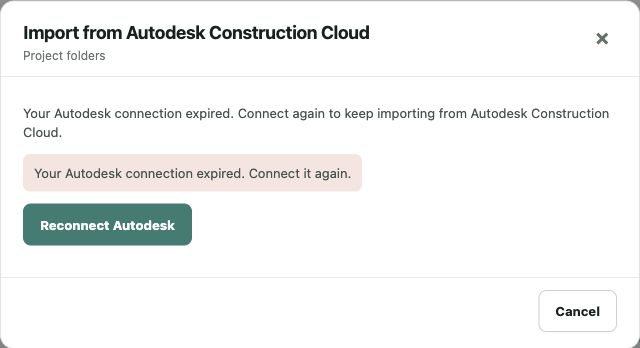
If the picker identifies an expired session, use Reconnect Autodesk and complete the normal sign-in flow. If project access is still missing, ask the administrator to confirm the relevant access rather than changing the review scope to whatever files happen to appear.
Setup and revision worksheet
| Check | Sources | Review question |
|---|---|---|
| Account and hub | Autodesk identity and intended project | Can the account access the correct hub and project? |
| Source selection | Folder files or Revit sheet list | Are the selected documents the intended issue and scope? |
| Imported package | Source register and Groundbook file list | Do filenames, sheet identities and counts match the chosen package? |
| Next issue | Revised source files and review baseline | Has the revised package been imported and identified for the next review? |
Supported workflow and source
Groundbook reviews the imported documents and links potential findings to their sources. This connector guide describes selected-file import, including Revit sheets; it does not promise automatic continuous synchronization or issue writeback to Autodesk.
Autodesk’s custom integration administration guide is the vendor reference for hub-level integration administration. Source checked October 13, 2026.
Groundbook steps and screenshots were checked against the app on October 13, 2026. See all supported file sources or use a direct PDF/DWG upload if the connection is unavailable.